Voice to text on a Mac: four ways, compared
· updated
By Andrey ChmerevI build Kekoso, a dictation app for macOS, which makes me one of the paid options discussed below. Everything stated about Apple's own tools comes from Apple's documentation, linked in the text.

Your Mac can already type what you say. Voice to text on a MacBook — or any other Mac — comes in four forms: two built into the system, one that costs money, and one that is free but lives in the terminal. The phrasing people search with varies (voice to text macbook, macbook talk to text, speak to text on macbook) and the answer does not: these are the same four routes. They are not interchangeable: one is meant for a paragraph at a time, one is meant for running the whole computer by voice, and the other two exist because the first two leave gaps.
The short answer
Dictation is built into macOS. It costs nothing, it is already installed, and it handles short bursts of text well.
Voice Control is also built in, but it is an accessibility feature for operating the Mac by voice — the mac voice control vs dictation question comes up often enough that it has its own section below. It includes dictation, and it switches regular Dictation off while it runs.
A paid dictation app buys you a hotkey that works in any app, a place to add the words you actually use — worth two thirds of the errors on jargon-heavy audio — and, depending on the app, recognition that stays on your machine.
Whisper run by hand is free and accurate. You feed it recordings and get text back. It will not type into Slack for you. What that route costs in disk, minutes and accuracy is measured separately, alongside the other three free options.
Built-in Dictation
Apple Dictation on Mac has shipped with macOS for years, and most people never turn it on. Here is how to use dictation on a Mac from a standing start.
To turn on dictation, Mac users open the Apple menu, then System Settings, then click Keyboard in the sidebar. Go to Dictation and switch it on.
To start dictating, press the microphone key if your keyboard has one, use the shortcut you set in that same pane, or choose Edit, then Start Dictation, in whatever app you are typing in. Setting that shortcut — and the two reasons it stops working — is its own article.
How to talk to text on a Mac, step by step
Does a Mac have speech to text built in? Yes, and talk to text on a MacBook is the same five steps as on any other Mac, from Apple’s own guide:
- Turn Dictation on: Apple menu > System Settings > Keyboard > Dictation.
- Click where the words should go — Mail, Notes, a browser field, anywhere you can type.
- Press and release the Microphone key. Holding it down calls Siri instead, which is the most common reason this “does not work”. The Dictation shortcut or Edit > Start Dictation does the same.
- Speak. Stop with Escape, the Microphone key or the shortcut; Dictation also stops by itself after 30 seconds without speech.
- Read it back. Words the Mac was unsure of are underlined in blue.
Pages voice to text is not a separate feature: speech to text in Pages, Word or Google Docs in a browser is this same system Dictation, so the steps above are the whole story. And if what you meant was the opposite — having the Mac speak text out loud to you — that is a different system, covered with the built-in voices.
Which microphone it listens to
In the same Dictation pane, the pop-up next to Microphone source shows the device the Mac is listening to; on Automatic it guesses. If dictation suddenly gets worse after you plug in a display or connect AirPods, this is the first place to look, because the Mac dictate microphone choice moves with whatever was connected last. A headset close to your mouth beats the laptop’s built-in array in a noisy room; in a quiet one the difference is small. Searches for a MacSpeech Dictate microphone are a different question — that product and its headset are history now.
What it handles well
There is no limit on how long you can talk. Apple’s documentation says dictation stops automatically when no speech is detected for 30 seconds, which is a silence timeout rather than a cap on length. Older versions of macOS did cap dictation at around a minute, which is where a lot of outdated advice comes from.
On Macs with Apple silicon, voice inputs and transcripts for general text dictation are processed on the device rather than sent to Siri servers. Apple tells you to check Keyboard settings to confirm this, which is worth doing once if it matters to your work.
Voice typing on a Mac handles punctuation two ways. You can say the name of the mark, such as “exclamation mark”, and in supported languages macOS inserts commas, periods and question marks on its own. On Apple silicon you can also keep typing while dictation is running, without stopping it first.
Where people get stuck
There is no vocabulary list. If you dictate the name of a colleague, a drug, a library or a client, you get whatever the model heard, and you correct it by hand every time. For most people this is the single reason they go looking for something else.
Language support is a list rather than a guarantee. Apple publishes which languages you can dictate in on its feature availability page for the current version of macOS, and if yours is missing, none of the above helps you.
Formatting is basic. You can say “new line” and “new paragraph”, but there are no rules you can define, so a variable name arrives as three separate words and a phone number arrives as prose.
Mixed-language speech is where it struggles most visibly. Dictation runs in one language at a time, so an English product name inside a Russian sentence, or a French term dropped into English prose, comes out transliterated into whatever language is active. Anyone who works in two languages hits this within a day.
Long unbroken passages drift. Punctuation inserted automatically is decided phrase by phrase, so a two-minute stretch of continuous speech tends to arrive as long sentences joined by commas where you meant full stops. Dictating in shorter bursts produces noticeably cleaner text, which is a workaround rather than a fix.
What macOS 26 changed, and what it did not
Apple shipped a new speech framework with macOS 26. Its documentation lists SpeechAnalyzer, which manages an analysis session over spoken audio, and SpeechTranscriber, described as a speech-to-text transcription module appropriate for normal conversation and general purposes, both introduced in version 26.0 across Apple’s platforms. The models it uses are downloaded and managed by the system, which is why apps built on it have no model download of their own.
That is a developer-facing change, and it is worth being precise about what it does not do. Apple does not document Apple Dictation for Mac as running on the new framework, and the Dictation pane in System Settings is the same pane it was. Nothing in that release adds a vocabulary list, file transcription or subtitle export to Apple Dictation — the gaps in the section above are still the gaps.
Where you will notice it is in other people’s apps. A macOS 26-only dictation app can now ship without bundling a speech model at all, and a growing number do. The trade-off they inherit is the OS floor: an app built on SpeechAnalyzer needs macOS 26, while apps that carry their own models — Whisper, Parakeet and the rest — still run on older systems. If your Mac is a few versions behind, that difference decides which half of the market you can install from.
Voice Control is a different feature
People find Voice Control while looking for better dictation and come away confused, because it was built for something else. Apple describes it as a way to navigate the desktop and apps, interact with what is on screen, dictate and edit text, and more.
It lives elsewhere in settings: Apple menu, then System Settings, then Accessibility in the sidebar, then Voice Control. You may have to scroll to find it.
One sentence in Apple’s documentation matters more than the rest: “When Voice Control is on, you use Voice Control to dictate text; standard macOS Dictation isn’t available.” The two do not stack, so you are choosing between them rather than combining them.
Voice Control has three ways of getting text in. Dictation mode is the default, and anything you say that is not a command becomes text. Spelling mode goes character by character and accepts phonetic codes, so “Alfa Bravo Charlie” produces abc. Command mode ignores everything that is not a command.
It edits, too. Say “Replace cat with dog” and it does exactly that. If your goal is to use a Mac without a keyboard, whether because of injury, disability, or a wrist in a cast for six weeks, this is the right tool, and the dictation inside it is a bonus. If your goal is to write faster while still using a keyboard and trackpad, it is more machinery than the job needs. Speed, incidentally, is decided by the model rather than the app: where the delay actually goes is mostly a fixed cost you cannot dictate your way around.
Paid dictation apps
This category exists because of the gaps above. We compared eight of them, with prices and where each one recognises speech, in best dictation apps for Mac. What you are buying, roughly in the order people care about it: a global hotkey that drops text into whatever field your cursor is already in, so you stop switching windows to dictate; a dictionary where you add your own names and jargon; post-processing that turns speech into something closer to what you would have typed; file transcription rather than live speech only; and a choice of recognition model, which matters if you speak a language where one model is clearly better than another.
Before paying for any of them, ask where the audio goes. Some of these apps capture on your machine and send the recording elsewhere for recognition, which is a normal engineering decision and usually documented somewhere. It is also not what people assume when they read “runs on your Mac”. Capturing locally and recognising locally are two different claims, and only the second one means the recording never leaves. If an app talks about privacy without saying where recognition happens, treat that as the answer. Ours spells out the route the audio takes, and you should expect the same from anyone else.
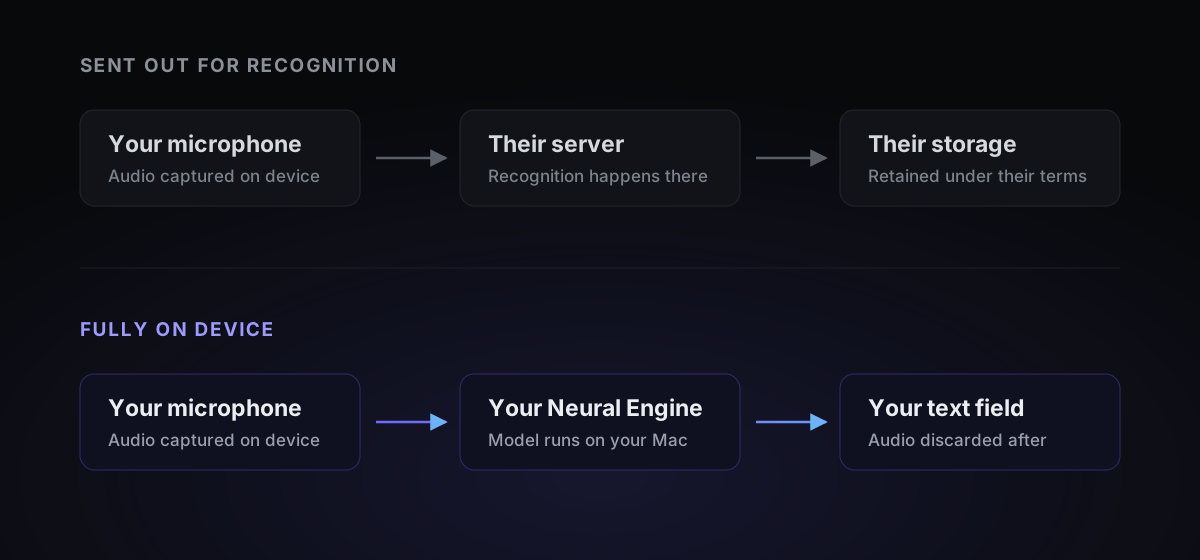
Disclosure: I make one of these. Kekoso belongs to the paid-app category described above — the hotkey works anywhere, the text lands where the cursor already is, and because recognition runs on the Neural Engine rather than a server, it keeps working with the network off. $29 once instead of monthly, a 7-day trial, three machines on a licence. What it asks in return is macOS 14.4 or later on Apple silicon, which rules out every Intel Mac and is the main reason to pick something else.
Whisper, run by hand
Whisper is OpenAI’s open speech recognition model. You can run it on your own machine for free, and there are builds tuned for Apple silicon that are fast enough to be practical.
You get accuracy, no subscription, no account, and nothing leaving your computer.
You do not get any connection to the way you work. There is no hotkey, and it does not type into other apps. You record a file, run a command, get a transcript, and paste it where you needed it. For a folder of interviews, that is a perfectly good workflow. For answering an email, it is absurd.
Setup is an evening, and it stays a small ongoing chore: model files to manage, command flags to remember, an occasional broken dependency after a system update. Some people enjoy that. If you are not one of them, that preference is most of what a paid app is selling you.
Side by side
| Dictation | Voice Control | Paid app | Whisper by hand | |
|---|---|---|---|---|
| Price | Free | Free | One-time or subscription, varies | Free |
| Types into any app | Yes | Yes | Yes | No |
| Recognition on device | On Apple silicon, per Apple | Not documented | Varies by app | Yes |
| Your own vocabulary | No | Commands only | Usually | Limited |
| Controls the computer | No | Yes | No | No |
| Transcribes files | No | No | Usually | Yes |
| Setup | Minutes | Minutes | Minutes | An evening, plus upkeep |
How to choose
If you dictate a few times a week, use the built-in Dictation. It is already there and it is good enough for a paragraph. Paying for something you touch twice a week makes no sense.
If you write for hours a day, a paid app earns its price back in corrections you stop making, especially if your work has its own vocabulary. Spend a week with the free options first so you know precisely what you are buying.
If you want to run the Mac by voice, use Voice Control, and accept that it replaces Dictation while it is on.
If you have a pile of recordings, use Whisper or an app that handles files. Live dictation tools are the wrong shape for that job, and the options are compared in how to transcribe audio and video to text on a Mac. If the recording you want is a video on YouTube rather than a file you hold, start with the platform’s own transcript panel — how to get a transcript from any YouTube video covers what is free, what the terms allow, and where the paid tools actually help.
Test it on your own words, not on a review
Every table in this article, mine included, is an average over other people’s audio. The only measurement that matters is your voice, your microphone, your room and your vocabulary.
Take a paragraph of your actual work — not a clean test sentence, but the kind of text you produce daily, with the names and terms in it. Dictate it into built-in Dictation. Dictate the same paragraph into whatever you are considering. Then count the corrections you would have to make in each, rather than judging how the text feels.
That count is the whole decision. If it is the same, the built-in one is free and you are done. If a paid app removes five corrections per paragraph and you dictate twenty paragraphs a day, the arithmetic answers itself.
If your work is confidential, the only question that matters is where recognition happens, and you should verify the answer rather than trust a landing page. Apple documents on-device processing for general dictation on Apple silicon. For anything else, look for a plain statement about where the audio is recognised, and treat the absence of one as a no.
Questions people ask
Does Mac dictation work offline?
Partly, and the answer depends on your hardware. On Macs with Apple silicon, Apple documents that voice inputs and transcripts for general text dictation are processed on the device rather than sent to Siri servers, and tells you to check Keyboard settings to confirm it for your machine. Other features may still use the network, so check that settings pane rather than assuming.
Is there a time limit on Mac dictation?
There is no cap on how long you can talk. Dictation stops on its own when it detects no speech for 30 seconds.
What is the keyboard shortcut for voice to text on a Mac?
Press the microphone key if your keyboard has one, or use the shortcut you set under System Settings, Keyboard, Dictation. You can also choose Edit, then Start Dictation, inside the app you are typing in.
Can I teach Mac dictation my own words?
Built-in Dictation has no vocabulary list you can edit. Names, acronyms and technical terms are the most common reason people move to a third-party dictation app.
What is the best speech to text app for a Mac?
It depends on how often you dictate. For a few paragraphs a week, the built-in Dictation is already installed and costs nothing. For daily writing with names and technical terms in it, a paid app with a custom vocabulary saves more time than it costs. For a folder of recordings rather than live speech, use a tool built for file transcription.
Did macOS 26 change Apple Dictation?
What changed is the developer side. Apple's documentation lists SpeechAnalyzer and SpeechTranscriber as introduced in macOS 26, a speech-to-text framework whose models the system downloads and updates. Built-in Dictation looks and behaves the same in settings, and Apple does not document it as running on the new framework, so the visible change arrives through third-party apps built on the API rather than through the Dictation switch itself.
Mac Voice Control vs Dictation — what is the difference?
No, they are not the same. Voice Control is an accessibility feature for operating the Mac by voice, and Apple's documentation states that while Voice Control is on, standard macOS Dictation is unavailable.