Skip to content
KekosoDownload

Call recording and transcription

Record a call on your Mac. Without a bot in the room.

Kekoso records your microphone and the system audio as two separate tracks, then transcribes both on the machine. Nobody has to admit a notetaker to the meeting, and “who said what” is a property of the recording rather than a guess made afterwards.

macOS 14.4 or later · Apple silicon · $29 once, not per month · 7-day trial

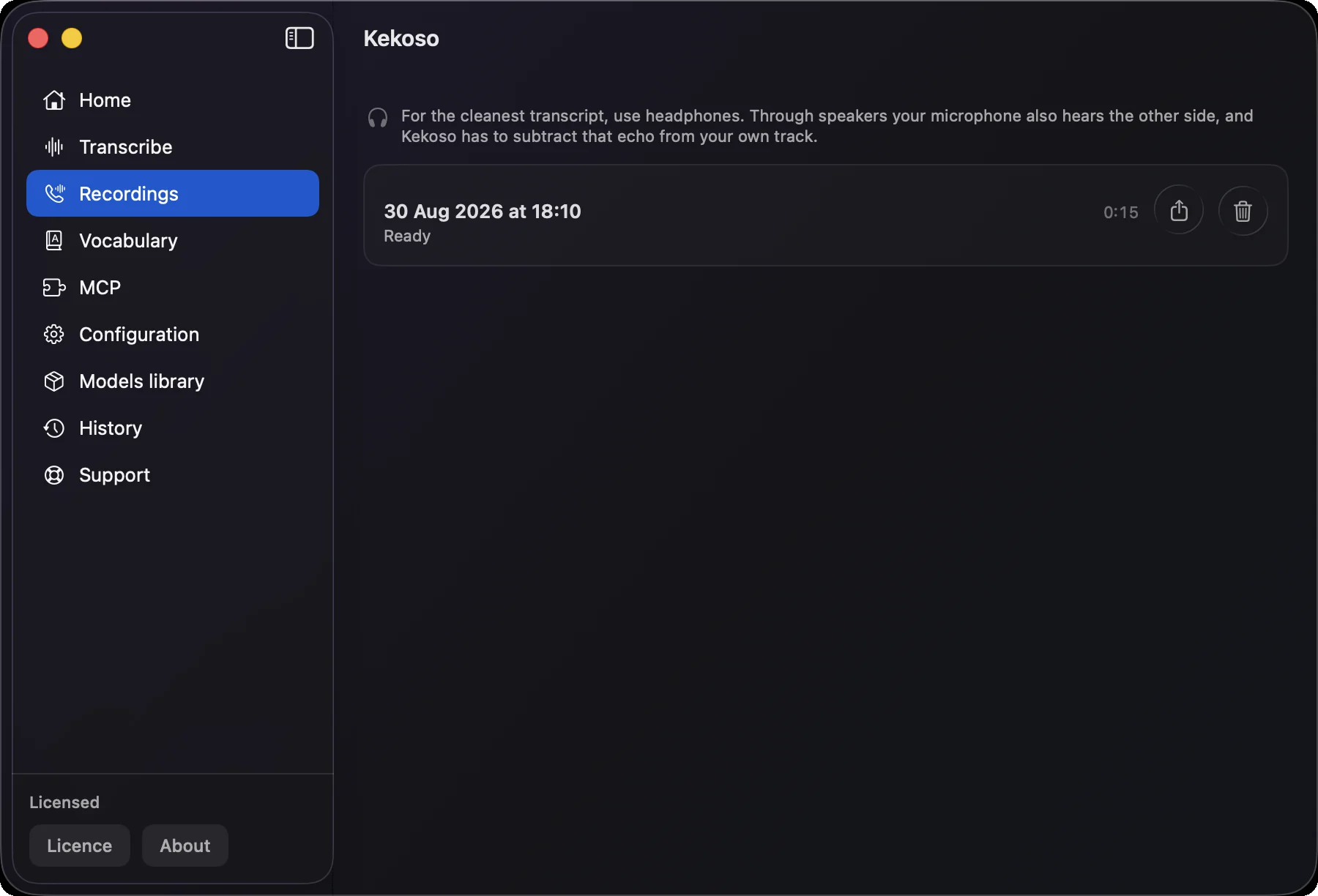
Recording a call on a Mac in Kekoso: a finished recording with microphone and system audio as separate tracks

How it works

One click before, a transcript after.

No integration to authorise, no calendar to connect, no seat to buy for a colleague who joined once.

  1. 01

    Start recording before the call

    One click in the menu bar. Kekoso captures your microphone and the system audio — whatever the other side sends to your speakers — as two separate streams, in any app: Zoom, Meet, Teams, FaceTime, a browser tab.

  2. 02

    Talk normally

    Nothing joins the meeting, nothing appears in the participant list, and nobody has to approve a notetaker. A visible indicator shows you that recording is running.

  3. 03

    Get a transcript with both sides labelled

    The two tracks are transcribed separately and merged back onto one timeline, so “You” and “Others” is a fact about the recording rather than a guess. Export it, or hand it to your own AI agent through the local MCP server.

How it captures the audio

To record system audio on a Mac, most apps ask for your screen.

That is not a design choice, it is the easy route: macOS hands out system audio through the screen-capture API. We took the harder one.

No screen-recording permission

Most apps that capture system audio on macOS go through ScreenCaptureKit, which means granting Screen Recording — permission to see everything on your display, for the sake of sound. Kekoso uses a Core Audio process tap instead: it takes the audio and cannot see your screen at all.

Two tracks, not one mixed blob

Your microphone and the system output are recorded as separate streams and stay separate. That is what makes speaker labels reliable — no diarization model guessing who spoke, just two sources that were never mixed.

An hour without drift

The microphone and the audio tap run on different hardware clocks, and over an hour independent streams slide apart. Kekoso runs both inside one private aggregate device with drift compensation, so the two tracks still line up at the end of a long call.

Your own voice, not doubled

What comes out of your speakers reaches your microphone too. An adaptive echo filter subtracts it, so your side is not transcribed twice and the other side is not smeared by your own voice bouncing back.

Kekoso is not in its own recording

The tap excludes the app itself, so notification sounds and anything Kekoso plays never end up in the file.

The transcript is yours to keep

Recordings and transcripts stay on the machine as ordinary files. No workspace, no seat, no retention policy written by someone else, and nothing to cancel later.

Where the call goes

Bot-free is not the same as private.

Plenty of notetakers advertise that no bot joins your meeting, and then record on your device and upload the audio anyway. The bot was never the private part — the upload is. A recording of a hiring conversation, a client negotiation or a medical consult ends up in a workspace someone else administers.

Kekoso keeps both: no bot in the call and no upload after it. The audio is written to your disk, transcription runs on your Mac, and the pipeline makes no network calls at all. Turn off Wi-Fi mid-call and the transcript still appears.

How to verify that yourself

What it does not do

The limits, up front.

  • macOS cannot tell us whether you granted audio access

    There is no public API to check or request permission for system audio recording. If it is denied, macOS does not report an error: the tap starts and every sample is a digital zero. Kekoso watches for that and warns you once, without stopping the recording — your microphone track keeps running while you sort it out.

  • It does not record the screen

    This is audio only. If you need the picture as well — a demo, a shared slide deck, a walkthrough — use QuickTime or a screen recorder alongside it. Not recording the screen is the reason no screen permission is needed.

  • It records your side only

    Kekoso captures what reaches your Mac. It does not dial in, does not join as a participant, and cannot pull a recording from a meeting platform’s cloud. If the call happened on someone else’s phone, this is not the tool.

  • Consent is on you

    Recording rules differ by country and by state, and in many places every participant must be told. Kekoso removes the bot from the room, not your obligation to say that you are recording.

  • Apple silicon only

    macOS 14.4 or later · Apple silicon. Recognition leans on the Neural Engine, which Intel Macs do not have.

Questions

Before the next call.

How do I record a Zoom meeting on my Mac without adding a notetaker bot?
Start recording in Kekoso before the call. It captures the audio arriving at your own Mac, so to record and later transcribe Zoom calls nothing joins the meeting and nobody has to approve a participant they did not invite. Tell the other side that you are recording — in many places that is a legal requirement, and removing the bot does not remove the obligation.
Does it need Screen Recording permission?
No, and that is deliberate. Capturing system audio through ScreenCaptureKit — the common route — would mean asking for permission to see your entire display in order to get sound. Kekoso uses a Core Audio process tap, which carries audio and no picture at all.
Can it record system audio on a Mac generally, not just calls?
Yes. The tap copies whatever is playing through your default output device, so a video, a webinar, a podcast or a browser tab records the same way a call does — together with your microphone if you want both.
Is this an OS X audio recorder, or does it only do calls?
It is a general one. People still search for an OS X audio recorder because macOS has never shipped a macOS sound recorder that captures what the machine is playing — QuickTime records the microphone and nothing else. To make a Mac record system sound you have always needed a virtual audio device or a third-party tool; Kekoso does it with a Core Audio process tap, and transcribes the result on the same machine.
Does the call transcription happen automatically?
The recording lands in Kekoso when the call ends and you choose when to turn it into text; call transcription is a click, not a background upload. For Zoom specifically, that means Zoom transcription without a notetaker in the participant list — Zoom meeting transcription done afterwards, from your own recording, whenever you get to it. The same holds for Meet and Teams.
Will it tell me who said what?
Yes, for two sides. Your microphone is one track and everything the other side sends is another, and they are transcribed separately before being merged onto one timeline. What it will not do is separate three people who are all on the far end of the same call — they arrive as one audio stream, and splitting them would need diarization, which Kekoso does not do.
Do I need a second app to get the text?
No. Voice recording and transcription live in the same app here: the tap writes the audio, the models read it back, and neither step leaves your Mac. Most workflows split those in two, which is how recordings end up on somebody else’s server on the way to becoming text.
Does anything get uploaded?
No. Recording and transcription both happen on your Mac, and the pipeline makes no network calls. The audio file and the transcript sit in your own folders, and you can delete either at any time.
Does it work with Teams, Google Meet and FaceTime?
Yes. Kekoso records at the level of your Mac’s audio output rather than integrating with a particular service, so anything that makes sound on the machine is captured — Zoom, Teams, Meet, FaceTime, Discord, a browser tab, a phone on speaker next to the laptop.
What happens if the call runs for two hours?
It keeps recording, and the two tracks stay in sync because both run inside one aggregate device with drift compensation. Length costs nothing extra: there is no per-minute billing and no cap.
What does it cost?
$29 once, for up to 3 of your own Macs, with a 7-day trial and no card to start. Meeting notetakers are typically $20–30 a month per person; this is a one-time purchase, and call recording is one part of it alongside dictation, file transcription and the MCP server.

Pricing

Buy it once. It's a tool, not a tenancy.

Four jobs that usually arrive as four subscriptions, running on hardware you already paid for.

$29once

7-day free trial. No card to start.

  • Dictation, files and links, call recording and the MCP server — all of it
  • No per-minute billing, no monthly cap, no usage dashboard
  • Use it on up to 3 of your own Macs
  • Free updates through the whole 1.x line
  • Works offline indefinitely; no license check to phone home weekly
  • 30-day refund, no argument, no questionnaire

macOS 14.4 or later · Apple silicon · payment handled by Lemon Squeezy

Try it on your own words.

7 days, every feature unlocked, no card and no account. If it does not earn its place in your week, delete it and nothing follows you.

macOS 14.4 or later · Apple silicon